Custom Grids
Vertical photos for social: build a safe-zone grid before you crop
A vertical phone photo grid for social posts, stories, reels covers, carousel crops, text overlays, UI-safe margins, and cleaner 9:16 compositions.
Vertical photos are not just tall photos. They are usually future posts: story backgrounds, reel covers, carousel slides, app cards, thumbnails, profile promos, or text overlays. The problem is that social interfaces add buttons, captions, usernames, progress bars, crop previews, and text on top of your image.
If you compose all the way to the edge, something important will get covered later. A safe-zone grid prevents that before you crop.
The frame is bigger than the visible photo
When you shoot a vertical image, you are not only composing for the camera roll. You are composing for where the photo will appear.
A vertical photo might become:
- a 9:16 story background
- a reel or short cover
- a 4x5 feed post
- a square profile card
- a carousel slide
- a blog or app-store image
- a text announcement background
Each use crops or covers the image differently. The safe-zone grid does not need to know every platform rule. It only needs to keep the subject away from dangerous edges and reserve one quiet area for text.
Build a vertical safe-zone grid
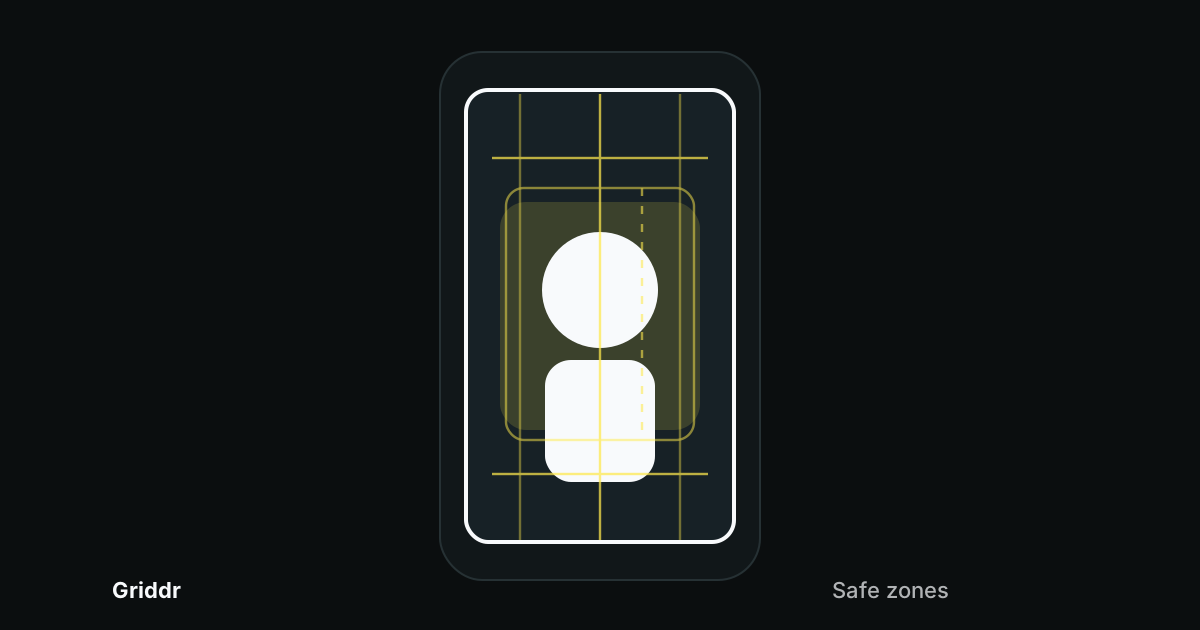
In Griddr, make a grid called Social safe zone:
- Add a vertical center line at 50%.
- Add horizontal guards at 12% and 88%.
- Add side margin guards at 10% and 90%.
- Add a center subject box from 20% to 80%.
- Add one optional text lane on the left or right third.
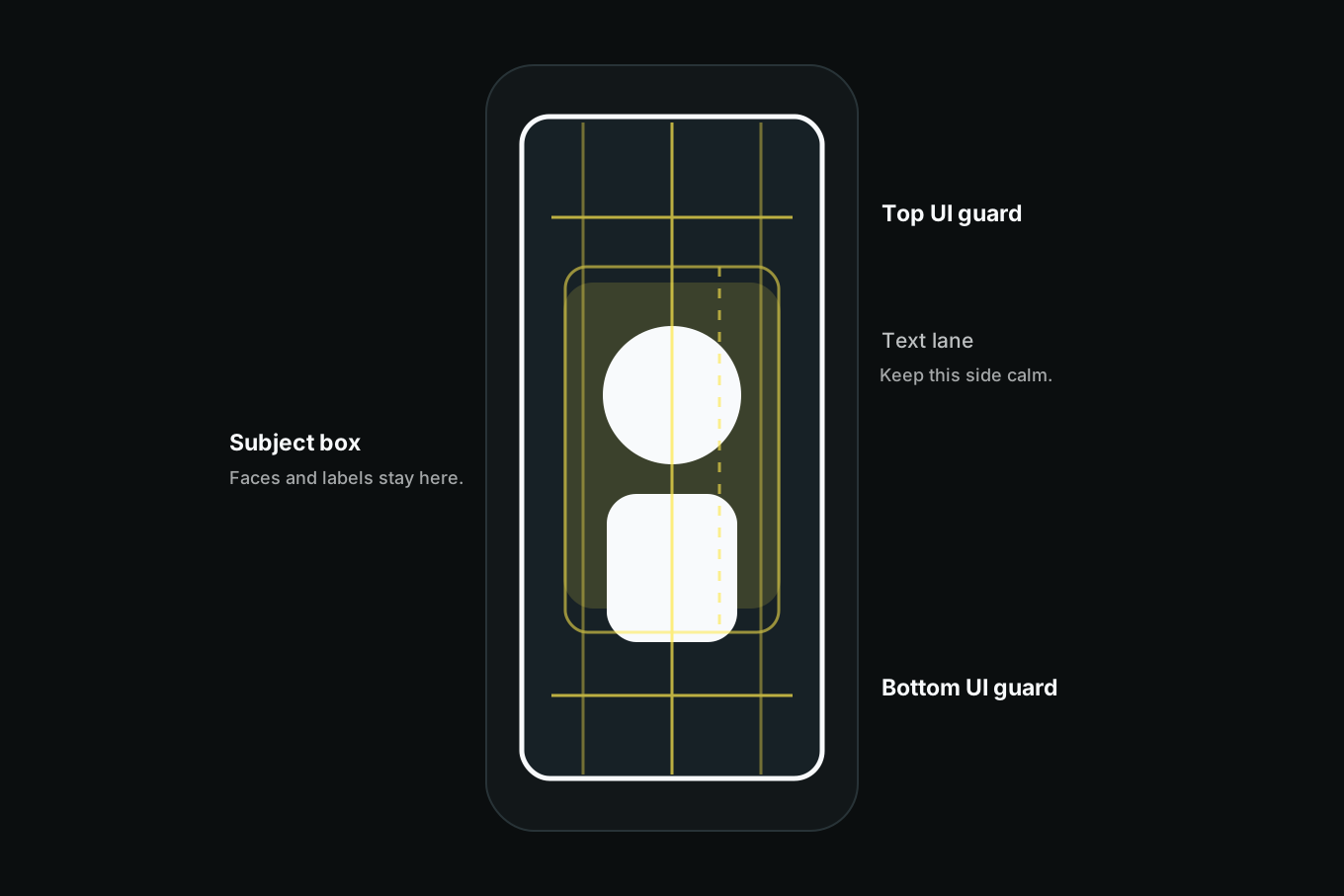
This grid is useful for people, products, food, travel scenes, event posters, workout clips, app screenshots, and any photo that may need text later.
Keep faces and products inside the subject box
The center subject box is the safest part of the frame. Put the thing that must survive every crop inside it:
- face
- product label
- plate
- outfit
- building entrance
- artwork
- event title
- app screen
- before-and-after result
The subject can extend outside the box, but the meaningful part should not. A portrait can have hair outside the box if the eyes and mouth are safe. A product can cast a shadow outside the box if the label is safe. A travel photo can include sky outside the box if the person and landmark are safe.
This is a custom-grid version of phone product photography and portrait headroom: choose the important part, then protect it.
Leave a text lane even if you do not need text
Text lanes are not only for text. They are also breathing room.
Keep one side or upper third calmer than the rest of the frame. Later, that space can hold:
- headline
- date
- price
- label
- location
- sticker
- menu item
- callout arrow
- button-like overlay
If you never add text, the quiet lane still helps the image feel less crowded. If you do add text, you will be glad the photo was not packed edge to edge.
The best time to make room for text is before the photo exists.
Shoot wider than the final crop
Vertical photos often get cropped twice: once by you, once by the platform or layout. Leave more margin than feels necessary.
For people, keep the eyes, shoulders, hands, and feet away from the top and bottom guards. For products, keep the label and silhouette inside the center subject box. For food, keep the hero bite away from stickers and captions. For travel, keep the landmark and person separated enough that a square preview still makes sense.
If the final image needs to feel tight, crop after. Do not shoot tight first and hope every future format behaves.
Design for the preview, not only the full view
Many vertical photos are seen first as smaller previews. A reel cover may appear as a grid tile. A story may be tapped quickly. A carousel slide may be seen at feed width. A blog card may crop the image horizontally.
Before publishing, ask:
- Can I understand the subject at thumbnail size?
- Does the face, label, or object survive a square crop?
- Is the text lane actually quiet?
- Is the top guard free of important details?
- Is the bottom guard free of important details?
If the answer is no, reshoot wider or use a different grid. This is why saved grids help more than one-off cropping. They keep future uses in mind while the camera is still open.
A simple vertical shot list
For any social-first photo, shoot:
- Clean 9:16 with subject centered inside the box.
- 9:16 with subject on one third and text lane opposite.
- 4x5-friendly crop with extra side margin.
- Detail frame for carousel or cover backup.
- Wide safety frame with more space than you think you need.
The safety frame often saves the post later.
Common vertical photo mistakes
Putting the face too high. UI, progress bars, and crop previews love the top edge. Give the headroom guard respect.
Letting labels hit the bottom. Captions and buttons often live low. Keep product labels away from the bottom guard.
Shooting only one crop. Vertical images travel. Give yourself a wide safety frame.
Adding text over busy detail. Reserve a quiet lane while shooting.
Trusting the camera roll preview. The camera roll is not the final layout. Compose for the places the photo will go.
Vertical social photos are easier when you stop treating crop as a rescue step. The safe-zone grid builds the future layout into the viewfinder, so the image still works after text, UI, thumbnails, and crops get involved.
Related reading
Shoot this with Griddr
Get Griddr — free on iOS & Android