Custom Grids
Custom camera grids: design your own overlay
Why custom camera grids beat rule-of-thirds, how to build one in Griddr, and how saved templates keep a series of photos consistent.
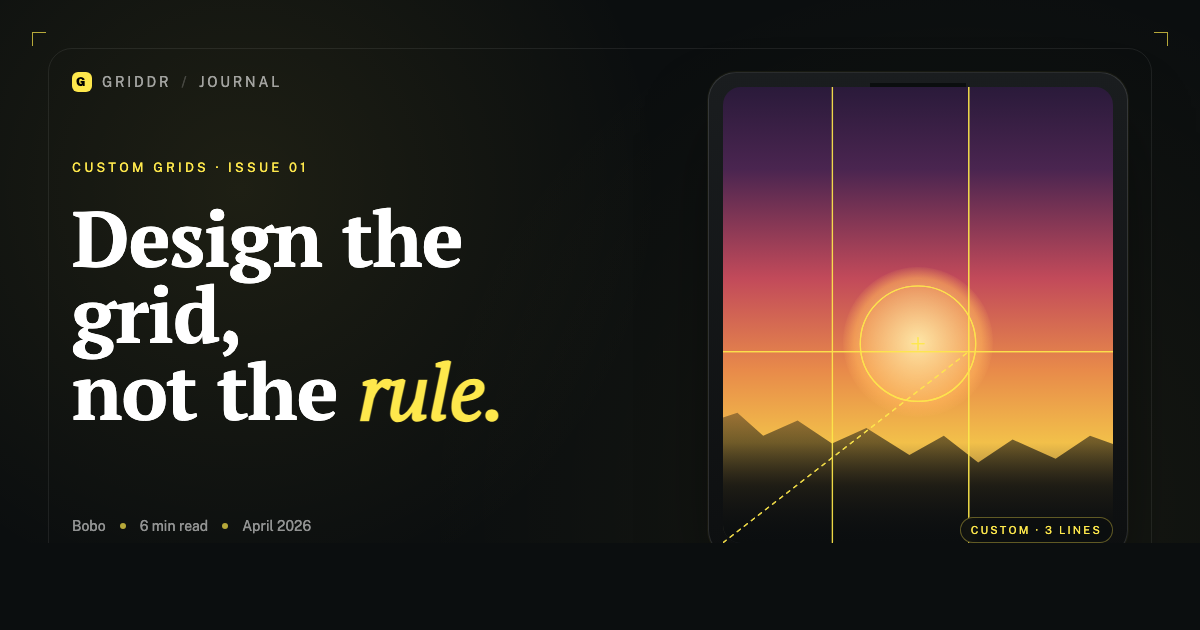
The rule of thirds is a great default. It's also a ceiling. Once you've shot a few hundred frames with the same nine-box overlay, you start noticing the shots that should be identical — the same vase on the same shelf, the same product on the same angle — are drifting apart by a few degrees and a few pixels every time.
That's the gap a custom camera grid fills. Not a preset. Not a different preset. A line, a circle, a cross — placed exactly where you want it, saved, and re-used every time you open the camera.
What a custom grid actually is
A custom grid is a composition template you draw yourself and keep. You decide where the lines go, how many of them, and what shape they form. In Griddr, the editor lets you sketch vertical and horizontal lines at arbitrary positions, add diagonals, and drop circles or ovals to mark focus regions.
The useful mental model is this: a grid is a coordinate system for your intent. Rule of thirds says "put the subject on a third line." A custom grid says "put the subject here, and here's a mark that says so."
A grid is a coordinate system for your intent.
Three situations where a custom grid beats a preset
1. Photographing a series that must look identical. Product listings, vending machines, coffee cups, family portraits against the same wall. You'll photograph the first one carefully, then need every subsequent shot to frame in the exact same position. A saved grid is faster and more accurate than eyeballing it.
2. Documenting artwork straight and centered. Rule of thirds puts nothing at the center. When you're shooting a framed painting or a print for archival reproduction, the whole point is centered and square — a margin rectangle plus a center cross is the right grid, and it doesn't ship in any camera by default.
3. Positioning faces in group shots. Wedding photographers call this the "head placement trick": before the group sits down, mark where each person's eyes should land in the frame. A freeform grid lets you sketch those marks once and reuse them for every group that day.
How to build one in Griddr
You don't need the Pro tier to try this — the custom grid editor is available to every user. (Saving more than one custom grid is a Pro feature.)
- Open Griddr and tap the grid icon in the bottom bar.
- Swipe to the Custom tab, then tap New grid.
- In the editor, tap to place a horizontal or vertical line. Drag to reposition.
- Use the + button to add diagonals, circles, or additional lines.
- Name the grid ("Product — 3/4 angle", "Portrait — wide lens") and save.
The grid now appears in your custom grids list. Tap it any time you want to use it; tap the default grid to switch back.
Referencing a photo when you design
The hardest part of a custom grid is deciding where the lines should go. The fastest way to figure that out is to import a reference photo you've already taken — one that framed perfectly — and draw lines directly over the composition you want to match.
This is the mode to use when a customer sends a photo and says "more like this." Drop their photo into the editor, trace the structure, save it, and your next hundred shots will land in the same place.
Free grids vs. Pro grids
Griddr ships with a generous free tier of grids: rule of thirds, diagonals, oval, vertical/horizontal halves, triangle, circle. The Pro tier adds the golden ratio spiral, golden triangle, frame overlay, and unlimited custom grids.
Custom grids are the feature most likely to pay for themselves on day one — the time you save on a single product shoot or portrait session is usually worth more than the app.
When not to use a custom grid
A custom grid is overkill for a casual snapshot. It's also a bad fit for candid street photography, where the whole point is reacting faster than you can compose. Keep the rule of thirds (or no grid at all) for those moments.
The moment you hear yourself think "I need this to match" — that's when you reach for a custom grid.
Related reading:
Shoot this with Griddr
Get Griddr — free on iOS & Android