Custom Grids
Before and after photos: match the same composition every time
A repeatable before-and-after photo workflow for matching framing, anchor points, distance, and crop so the change is easy to see.
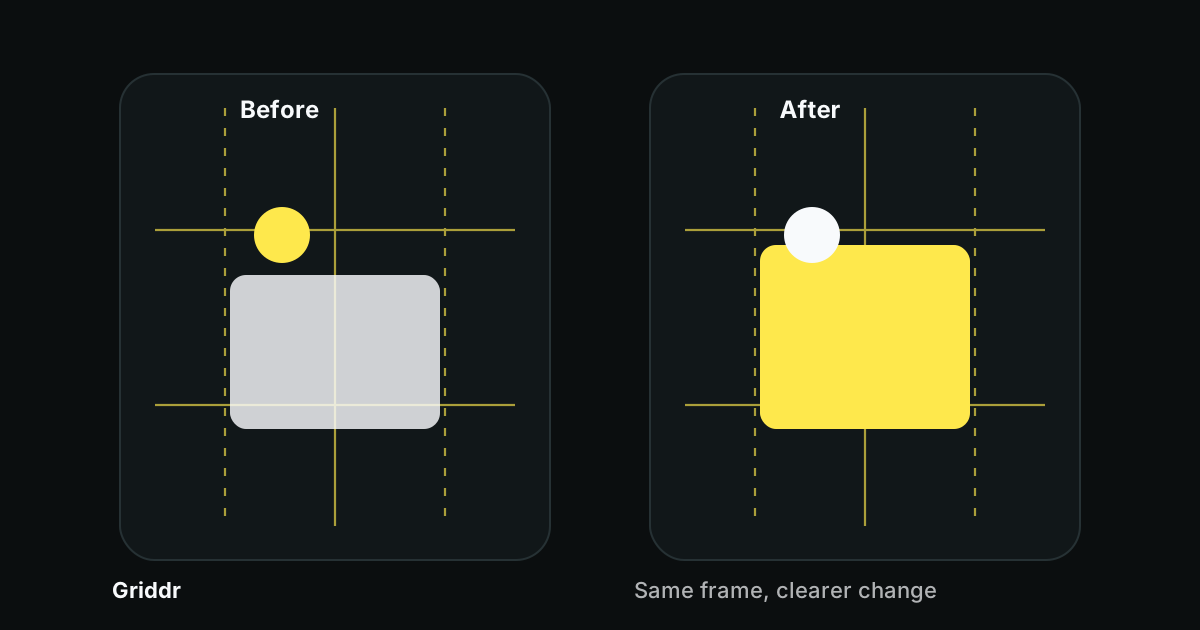
The best before-and-after photos are not the most dramatic. They are the easiest to compare. Same distance, same angle, same crop, same anchor points. The change should be the only loud thing in the frame.
That is exactly what a saved grid is for. You build the first frame carefully, turn its important points into a grid, then use that grid to shoot the after photo without guessing.
Before-and-after is not the same as a series
A photo series can tolerate variation. A before-and-after pair cannot.
In a series, small differences can feel alive: a subject moves, light changes, a product rotates, a room evolves. In a before-and-after pair, those differences compete with the transformation. If the after photo is closer, brighter, lower, and cropped differently, the viewer has to decode the camera change before seeing the actual change.
For before-and-after work, the boring parts should match:
- camera height
- distance
- angle
- background edges
- subject size
- crop margins
- main anchor points
Then the transformation gets to speak clearly.
Shoot the before frame like a template
Do not rush the before photo. It is not just documentation. It is the template for the after photo.
Before you shoot, choose three to five anchor points that will still exist later. Good anchors are stable, visible, and easy to line up:
- wall corners
- table edges
- door frames
- shelf corners
- floor seams
- product label corners
- a centerline through a face, object, or room
- the top and bottom of a frame, mirror, poster, or screen
Avoid anchors that will move or disappear. A chair, plant, coffee mug, loose cable, or hand is usually a bad anchor unless it is the subject of the change.
Build the reference grid
After the before photo is right, turn it into a reusable grid:
- Open Griddr's custom grid editor.
- Import the before photo as a reference underlay.
- Add vertical lines through stable left and right anchor points.
- Add one center line through the subject or room.
- Add horizontal lines through top and bottom anchors.
- Add safe-margin lines if the final image needs a square or vertical crop.
- Save the grid with the project name.
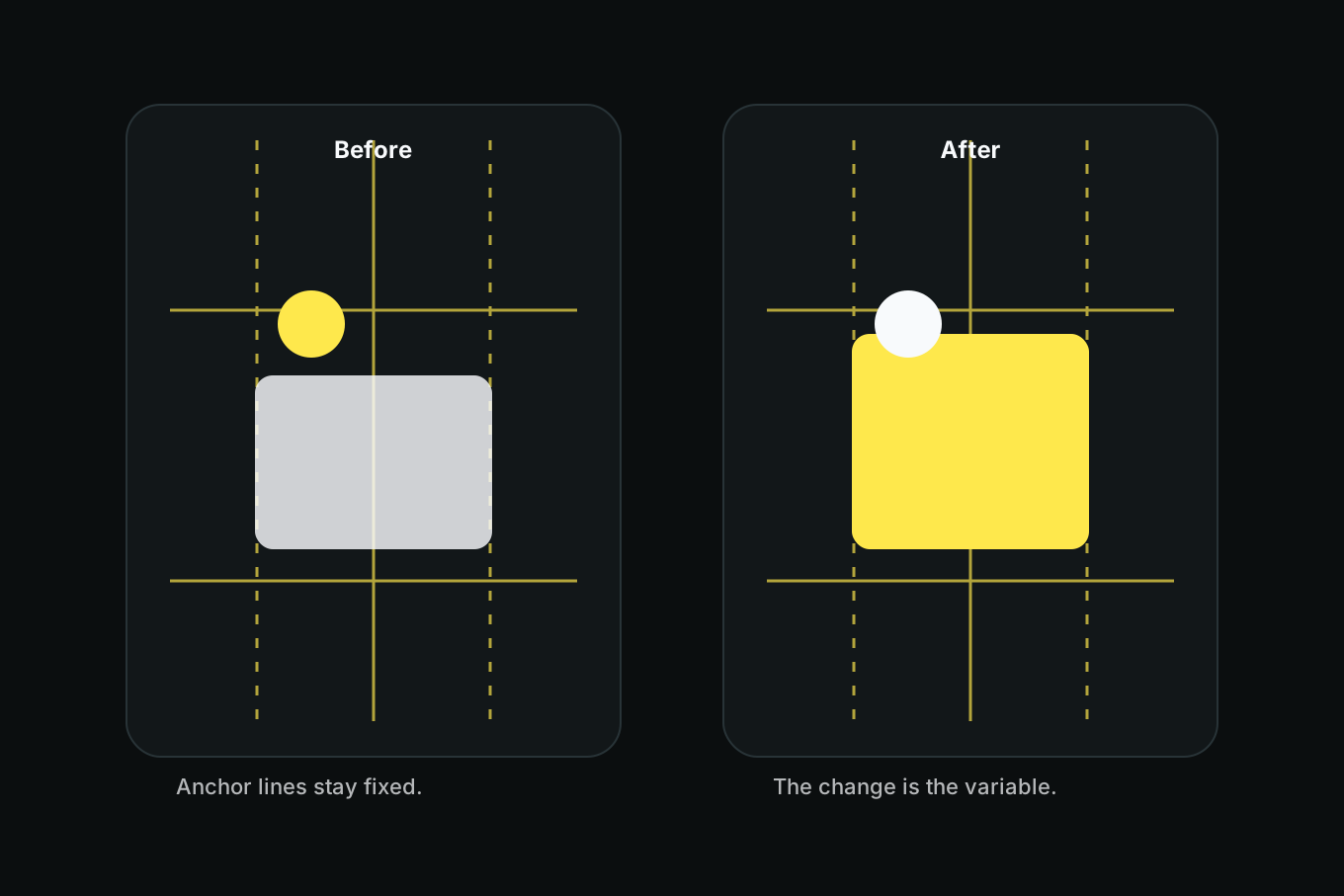
You are not tracing every detail. You are saving the few lines that matter.
Shoot the after photo against the same anchors
When it is time for the after photo, load the saved grid and recreate the frame.
Start with distance. If the subject is larger or smaller than before, move your body before zooming. Then match height. If the old frame was at chest height, do not shoot the after from eye level. Finally, align the anchor points to the grid.
The order matters:
- Distance.
- Height.
- Left-right position.
- Tilt.
- Crop.
If you start with crop, you will chase the frame forever. If you start with distance and height, the grid will tell you the rest.
Match the camera first. Then show the change.
Use cases that benefit most
Room makeovers. Align wall corners, floor seams, windows, and large furniture edges. This keeps the room size honest.
Desk setups. Align the desktop edge, monitor center, and back wall line. Great for workspace upgrades and cable cleanup.
Product packaging changes. Align the product center, top, bottom, and label rails. This makes design changes easier to compare.
Artwork, prints, and frames. Use the same method as photographing artwork straight, but save the grid for later reshoots.
Hair, styling, and wardrobe. Align the eyes, shoulders, and crop lines. Keep lighting and distance as consistent as possible so the styling is the real difference.
What not to match
Not everything should be identical. The point is comparison, not cloning.
Let the subject change. Let the cleaned room be cleaner. Let the new label be brighter. Let the haircut move differently. Let the desk have fewer objects. Let the after photo feel finished.
But do not let the camera change pretend to be progress. A room photographed wider in the after frame looks larger even if nothing changed. A product shot closer looks more important. A portrait lit better can make the change seem bigger than it is.
Matching the grid is a small honesty check.
The 30-second field checklist
Before you shoot the after photo, check:
- Do the stable anchors hit the same grid lines?
- Is the phone at the same height?
- Is the subject the same size in the frame?
- Is the strongest horizontal line level?
- Are the crop margins similar?
- Is the light close enough that the comparison feels fair?
If three of those are off, reshoot. It is faster than trying to fix a mismatched pair later.
When a perfect match is impossible
Sometimes the space changed too much. A wall is gone. Furniture moved. A product shape changed. A subject cannot stand in exactly the same place.
In that case, match the most stable part of the frame and be consistent about the compromise. For a renovated room, align the floor and two wall edges. For a packaging change, align the label center and product bottom. For a portrait, align the eyes and shoulders.
You only need enough sameness for the viewer to trust the comparison.
Before-and-after photos are proof photos. The grid removes the noise around the proof, so the change is visible without explanation. That is the whole win.
Related reading
Shoot this with Griddr
Get Griddr — free on iOS & Android